How to share Google Calendar with your family
There are three ways to share Google Calendar with your family: share your personal calendar with specific people, create a separate joint calendar everyone adds to, or sync Google Calendar two-way into a family organizer app. The first takes two minutes, the second suits two adults, and the third is the one that works once kids, colors and school schedules enter the picture.
Here's how to do each, and where each one breaks.

Share a Google Calendar with family members
- 1
Share your calendar directly
In Google Calendar settings, open "Share with specific people", add your partner's email, and choose their permission level. They now see your events among their calendars.
- 2
Or create a joint family calendar
Create a new calendar named for the family, share it with each adult with "Make changes" permission, and agree that family events go there rather than on personal calendars.
- 3
Or sync into a family organizer
Connect Google Calendar to a family app with two-way sync. Pick which calendars flow in and which shared events flow back, and family members without Google accounts still see everything.
Direct sharing and where it breaks
Sharing calendars between two adults works until the family grows around it. Every member needs a Google account, which rules out young kids (Google's minimum age for a self-managed account is 13 in most countries). Events are colored by calendar, not by person, so "who has what today" takes detective work. And overlaying four calendars turns every week into a wall of stripes.
It also shares everything or nothing per calendar. Your partner gets your dentist appointment and your 1:1 with your manager, or neither.
The joint calendar, a solid two-adult setup
A dedicated "Smith Family" calendar that both adults can edit fixes the privacy problem: work stays on work calendars, family events go on the joint one. For two organized adults this is genuinely fine, and it's free.
The gaps appear with kids. There's no concept of a person who isn't an account holder, so the kids' schedules get mixed into one undifferentiated stream, and nothing connects the calendar to the shopping list, the meal plan or the chore chart it constantly references.
Two-way sync into a family organizer
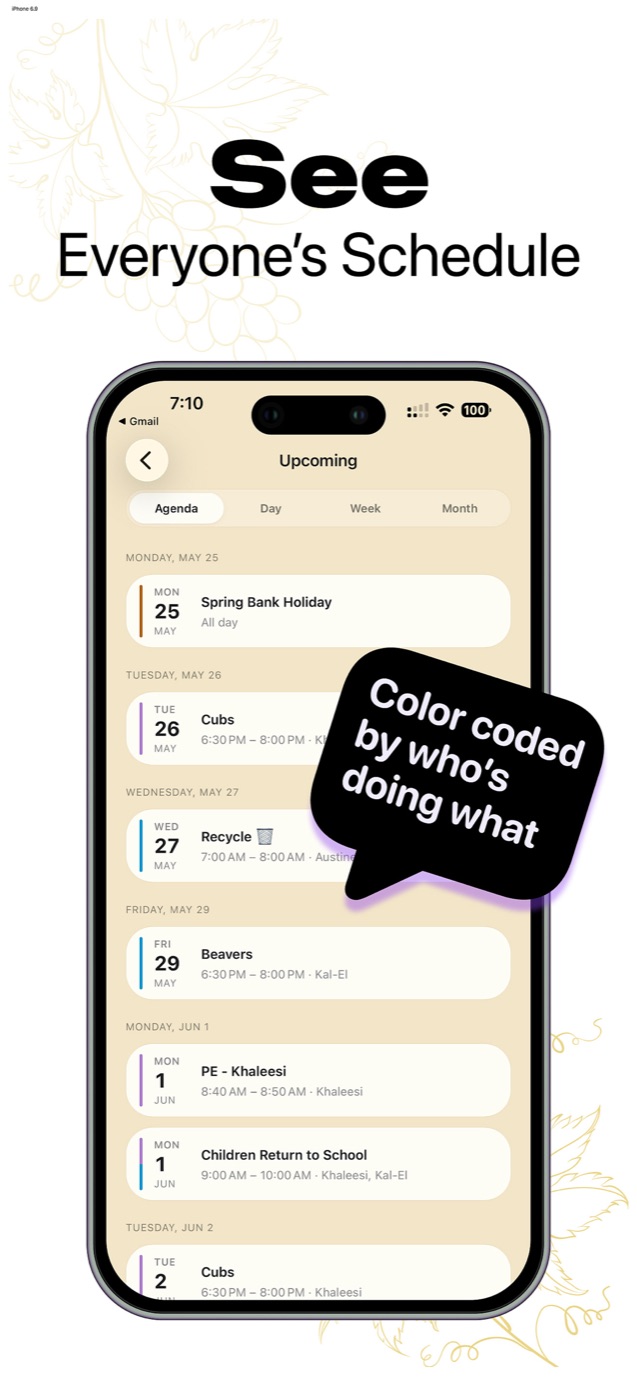
The third route keeps Google Calendar for what it's good at and adds a family layer on top. Famora's two-way sync lets each adult pick which of their calendars feed in, and which family events flow back out to Google. Your work meetings surface as busy time on the family view without their details ever leaving your account, unless you choose to share them.
On the family side, everyone gets a color, kids exist as profiles without any Google account, and the calendar sits next to the grocery list and meal plan it belongs with. Apple Calendar users can import read-only alongside.
Common questions
- Can I sync Google Calendar without exposing private work events?
- Yes. In Famora you choose per calendar what syncs in and in which direction, so a work calendar can feed the family view while its event details, or the whole calendar, stay private.
- Does everyone in the family need a Google account?
- No. Only the adults connecting their own Google Calendars need one. Everyone else, kids included, lives on the family calendar as profiles and sees synced events without any Google login.