How to turn school newsletters into calendar events
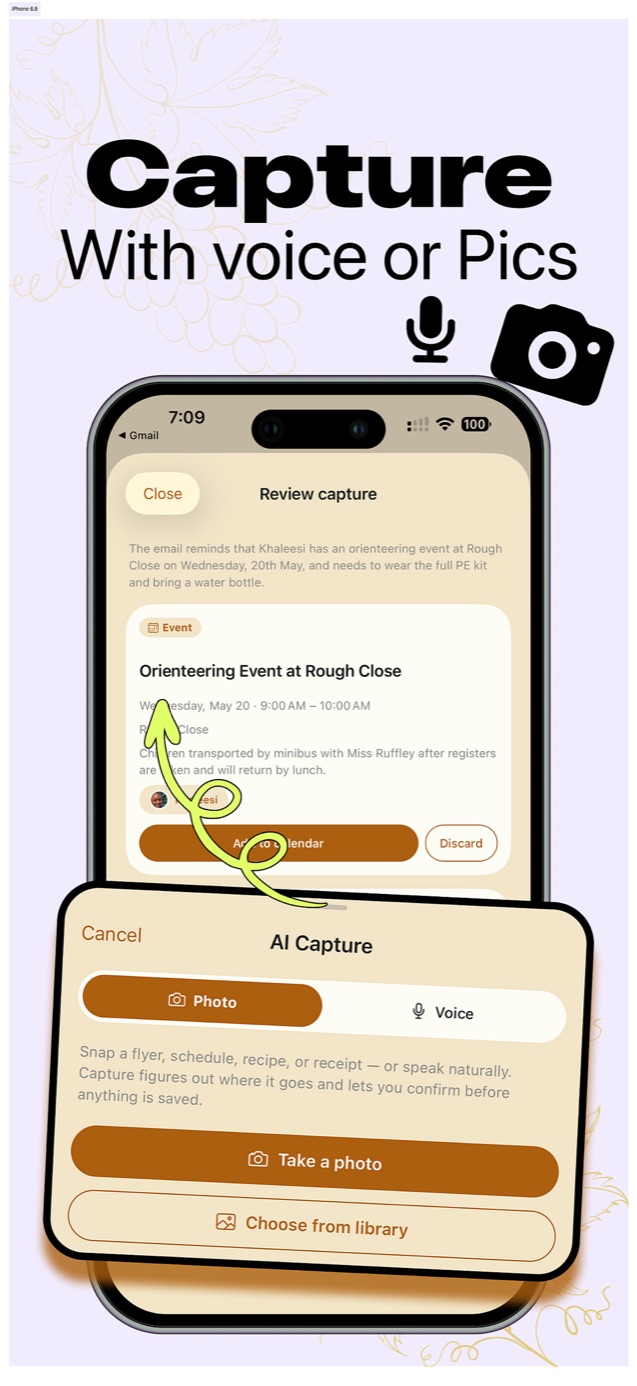
The fastest way to get a school newsletter onto the family calendar is to stop typing: photograph the flyer, or paste the email, and let AI extract the event. Famora's AI Capture reads the text, pulls out the date, time, location and requirements, guesses which child it belongs to, and shows you the result to approve before anything is saved.
What used to be ten minutes of squinting at a PDF on a Sunday night becomes a fifteen-second review.

Turn a school newsletter into calendar events
- 1
Capture the source
Photograph the paper flyer, screenshot the email or newsletter PDF, or just read the key lines out loud with voice capture.
- 2
Let the AI extract the event
The date, start and end time, location and notes (PE kit, water bottle, payment deadline) are pulled from the text automatically.
- 3
Check the review screen
Confirm the details and the child it's assigned to. AI can misread a date, so nothing is saved until you approve it.
- 4
Add to the family calendar
The event lands in the right child's color, visible to the whole household, with reminders attached.
The Sunday-night newsletter problem
Schools communicate in prose. Somewhere in paragraph four of the newsletter is the sentence that matters: orienteering on Wednesday the 20th, full PE kit, bring a water bottle. Multiply by two kids, three clubs and a class WhatsApp, and transcribing it all becomes a weekly admin session that lands on whoever reads the newsletters. Which is precisely the mental load problem: the reader becomes the owner of everything they read.
Extraction changes who does the work. Anyone in the household can point a camera at a flyer in the school corridor, and the event exists before they reach the car.
Photo, screenshot or voice
Paper flyers and permission slips: take a photo. Email newsletters: screenshot the relevant part, or paste the text. Something you heard at the school gate: hold the voice button and say it in plain words, like "Khaleesi has orienteering at Rough Close on Wednesday, ninth of May, nine till ten, needs full PE kit". Each route ends at the same review screen.
Capture also handles the non-calendar cases. A photographed recipe lands in your cookbook with ingredients parsed; a spoken shopping reminder lands on the grocery list in the right category.
Why the review step matters
Language models occasionally misread a date or invent a detail, and a school event on the wrong day is worse than no event at all. That is why capture in Famora always ends in a review card showing exactly what will be created. You confirm, correct or discard; only then does it touch the calendar.
In practice you will approve most captures untouched, and the habit of a two-second glance keeps the calendar trustworthy, which is the whole point of having one.
Common questions
- Does it work with the school's email newsletters, not just paper flyers?
- Yes. Screenshot the email or paste its text into capture. The extraction works on any text it can read, including PDFs shown on screen.
- Can it read handwritten notes?
- Usually, if the writing is reasonably legible. A photographed handwritten shopping list or a note from the childminder parses the same way as print, and the review screen catches anything it got wrong.